


Skip to content
Talk to us+31 318 894 615
Service Automation SuiteService Automation Suite
All integrations

Integration · Service Automation Suite

TOPdesk

Make TOPdesk part of your business processes.

More about this integration

Make TOPdesk part of your business processes. Service Automation Suite connects data, requests, decisions and execution across TOPdesk, your other applications and suppliers. From HR and IT to facilities and finance, each step connects to what happens before and after it.

TOPdesk connected to your business processes

TOPdesk plays its part.
Throughout the process.

A process can begin in HR, a customer portal or TOPdesk. Along the way, it may need an approval, task or data from TOPdesk. Work then continues in identity, signing or finance, for example. Service Automation Suite connects those steps and returns the outcome wherever it is needed. Your teams keep working in their familiar applications.

The outcome determines the next step.

Approval can release execution. A confirmed handover can update the asset record. An error can create a task for the responsible team. Decisions, manual work and automated actions remain part of the same process.

Illustration: Service Automation Suite connects HR, operations and customers to TOPdesk and exchanges tickets, replies and status with a supplier service desk. Signing and confirmed results feed back into the process.TOPdeskService Automation Suite
Start with one process step. Expand using the same data and rules.Illustrative view, not a TOPdesk product screen.

Combine into one controlled process

Data → rules → execution
  1. Combine

    HR change + TOPdesk data + assets

  2. Determine & check

    TOPdesk activities, profiles and approval determine the next steps

  3. Execute & report back

    Account request · Handover · Signing · Confirmation in TOPdesk and HR

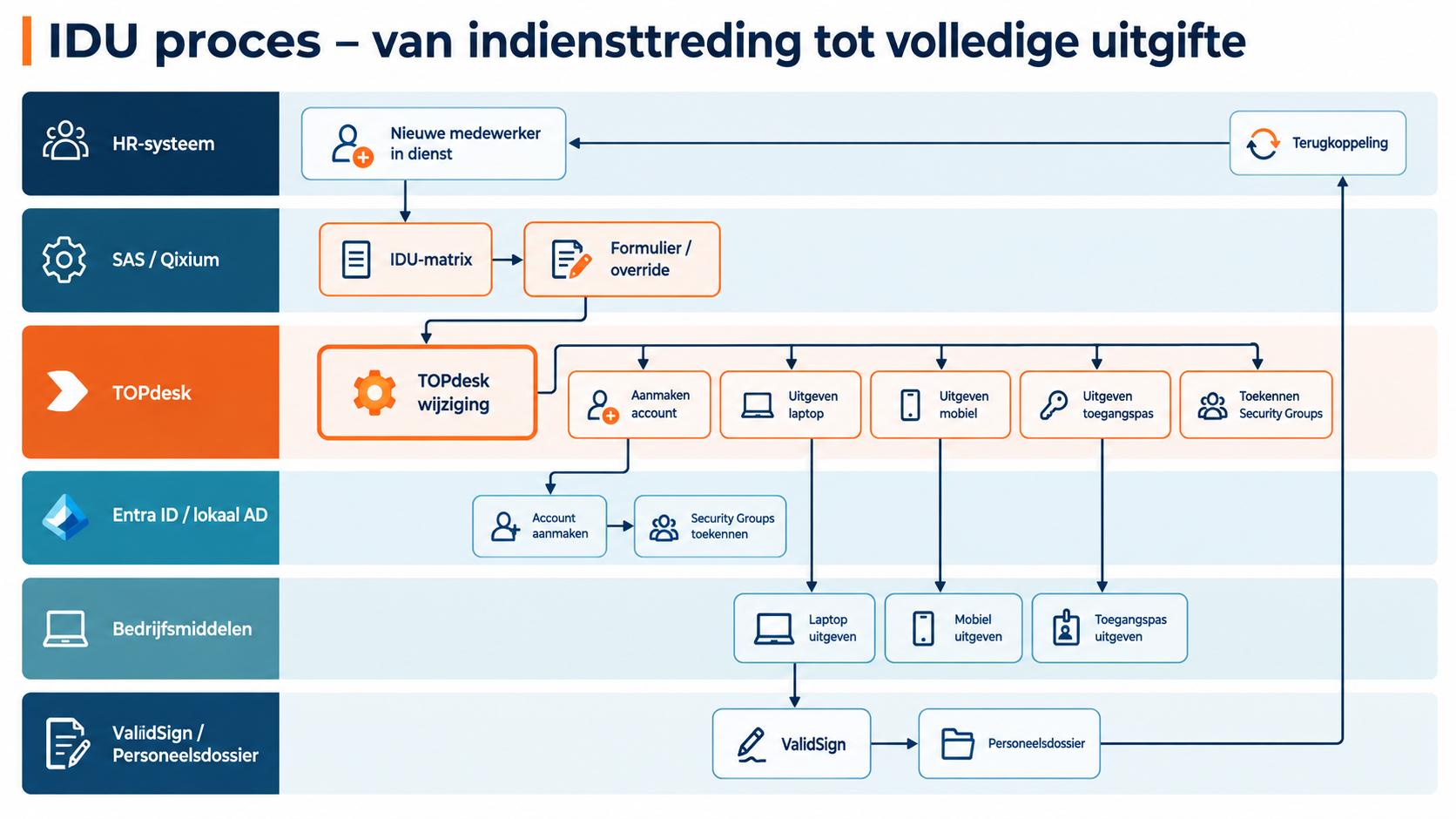
View the complete onboarding exampleHR through profile rules and TOPdesk activities to Entra accounts, equipment handover, signing and feedback.

Check sources and rules, test changes and track the outcome. Manual tasks get an owner and confirmation.

Build visually. Manage easily.

Reuse building blocks, adapt your process and test the change. Manage it yourself, together with us or let Scope4mation take care of it.

Integrations with TOPdesk

Employees & access

Account, laptop and access ready on time.

A new colleague needs more than an account. Assets, service activities and HR administration must align across onboarding, role changes and offboarding.

What Service Automation Suite coordinates centrally

Maintain your data in your own applications.

Service Automation Suite combines that source data with your role and access matrix and orchestrates the whole workflow: accounts and groups in Entra ID or local AD, asset handover and return tasks, signing through ValidSign and recording the outcome in TOPdesk and the personnel file.

What your team gains

A complete start for a new colleague: account, access, equipment and a signed receipt coordinated together. HR, IT and facilities spend less time re-entering data and chasing separate tasks. The same workflow coordinates changes and returns when someone changes roles or leaves.

See what is complete and what still needs attention.

For example, in your setup

Onboarding with a matrix and forms

The right questions and activities for this employee.

Use role, department, location and start date to determine the workflow. Reuse what is already known and ask specifically for what is missing.

  1. Combine and determine

    Combine HR and TOPdesk data with your matrix for access, assets and work. Determine the questions and activities relevant to this situation.

  2. Add what is needed automatically

    Offer additional questions through a form. Let new information add or update the required activities instead of manually rebuilding the entire onboarding workflow.

  3. Execute and report back

    Execute account, asset and service tasks through the configured workflow. Record status and results in TOPdesk and agreed HR records; exceptions remain part of the same process.

Onboarding

From employee change to a complete start.

Service Automation Suite connects IAM to the wider employee workflow. Use a matrix in Service Automation Suite to relate roles to access, assets and tasks, for example. Combine those rules with current HR and TOPdesk data and agree who maintains the matrix. This determines the changes and actions needed.

  1. Combine available information

    Use the HR change and current person, access and asset data. Forms or reviews supply missing information and exceptions.

  2. Let the matrix define the route

    Service Automation Suite applies role profiles, conditions and effective dates. Start or update the TOPdesk change with appropriate activities for HR, IT and facilities.

  3. Execute, confirm and update

    Connect account and group actions to asset handover and confirmation. Include ValidSign signing and file storage where needed. Return outcomes to the activities.

  4. Complete the loop with HR

    Once the account is created, write agreed account data or status back to AFAS or the chosen HR source. The TOPdesk activity receives the same outcome. HR and IT no longer need to copy or chase confirmation separately.

Role change

A different role. An appropriate new setup.

Service Automation Suite connects IAM to the wider employee workflow. Use a matrix in Service Automation Suite to relate roles to access, assets and tasks, for example. Combine those rules with current HR and TOPdesk data and agree who maintains the matrix. This determines the changes and actions needed.

  1. Combine available information

    Use the HR change and current person, access and asset data. Forms or reviews supply missing information and exceptions.

  2. Let the matrix define the route

    Service Automation Suite applies role profiles, conditions and effective dates. Start or update the TOPdesk change with appropriate activities for HR, IT and facilities.

  3. Execute, confirm and update

    Connect account and group actions to asset handover and confirmation. Include ValidSign signing and file storage where needed. Return outcomes to the activities.

  4. Complete the loop with HR

    Return confirmed changes or revocations to TOPdesk activities and, where agreed, the HR source. Employee records, execution and follow-up stay aligned.

Offboarding

Departure known. Access and assets follow through.

Service Automation Suite connects IAM to the wider employee workflow. Use a matrix in Service Automation Suite to relate roles to access, assets and tasks, for example. Combine those rules with current HR and TOPdesk data and agree who maintains the matrix. This determines the changes and actions needed.

  1. Combine available information

    Use the HR change and current person, access and asset data. Forms or reviews supply missing information and exceptions.

  2. Let the matrix define the route

    Service Automation Suite applies role profiles, conditions and effective dates. Start or update the TOPdesk change with appropriate activities for HR, IT and facilities.

  3. Revoke, recover and complete

    Connect revocation of access and groups to asset returns. Update relationships and records, keeping open activities visible until their outcome is known.

  4. Complete the loop with HR

    Return confirmed changes or revocations to TOPdesk activities and, where agreed, the HR source. Employee records, execution and follow-up stay aligned.

Back to AFAS

Return the outcome to AFAS too.

AFAS can supply data and receive outcomes. Have a completed workflow step update agreed data in AFAS. This is a separate route, not an automatic reversal of every sync.

  1. Identify confirmed execution

    Use the confirmed completion of an activity, such as account creation. The outcome, not merely the command, triggers feedback.

  2. Define what AFAS should receive

    Service Automation Suite applies matching, mapping and processing rules. Only selected data is written back.

  3. Update and record the outcome

    Process through the available AFAS interface and link success or failure to the original workflow.

Manage access

Approved. Executed under control.

Connect an approved request to account or access actions. Policy and authorisation remain authoritative.

  1. Record the decision

    Check the approved person, access and duration. An unapproved request does not authorise execution.

  2. Choose the executor

    Execute the available account or group action through the configured connection. If HelloID manages the lifecycle, Service Automation Suite connects to it without duplicating its rules.

  3. Report the result

    Record whether the action succeeded. Route errors or exceptions to the authorised operator; sending a command is not proof of successful execution.


Digital signing Popular

From a signing request to a complete record.

Have documents digitally signed with ValidSign from a TOPdesk request or activity. The status and signed document return to the same record.

What Service Automation Suite coordinates centrally

Service Automation Suite fills the document with the agreed data, starts the ValidSign signing request and connects its status to the next steps in TOPdesk.

What your team gains

Less manual document preparation, chasing signatures and searching for signed files. Status and documents return to the right TOPdesk activity; missing signatures receive follow-up.

For example, in your setup

Signing

One signature. A complete record.

Connect a request or activity to digital signing. Keep the document, signing status and follow-up with the same record.

  1. Request ready

    The document and signer details are checked. An agreed status or activity triggers the next step.

  2. Request signatures

    Service Automation Suite can start a signing request in ValidSign and retrieve or receive its available status. Agree how to handle rejection, expiry or errors.

  3. Back in TOPdesk

    Return the status and signed document to the original record. Complete the activity only after the agreed check.

Sign for equipment

Equipment handed over. Receipt confirmed.

An employee joins or changes roles. Connect the HR change to a laptop or phone handover and request digital confirmation of receipt, for example through ValidSign. Service Automation Suite brings the employee, asset, document and follow-up together. Configuration follows your rules and the available interfaces.

  1. Define the equipment handover

    Use employee and role data from the chosen HR source. Check the assigned equipment, required approval and handover owner. Link employee and asset to the same request or activity.

  2. Request confirmation of receipt

    Prepare a receipt or equipment loan declaration with the correct employee and asset data according to your rules. Start a signing request in ValidSign, for example, and track the available signing status. Sending a request does not mean receipt has been confirmed.

  3. Store evidence and follow up exceptions

    After confirmed signing, store the document or its reference with the correct asset and record, for example in TOPdesk. Assign an owner to declined or expired requests and missing data. Configure feedback to HR only where available and agreed.

SSP, forms & execution

Submit a request. Coordinate the follow-up immediately.

From requesting an asset to executing a change: combine your TOPdesk SSP with Service Automation Suite forms, current data and actions in other systems.

What Service Automation Suite coordinates centrally

Service Automation Suite brings TOPdesk stock, filters and central registers into your form. The matrix and answers determine additional questions, approvals and activities. Execution, signing and registration follow, with feedback to the request.

What your team gains

Requesters spend less time re-entering known information. Operators spend less time coordinating answers, approvals and execution through separate emails. Open steps are visible with the request.

For example, in your setup

Automate SSP requests

From an SSP request to execution and feedback.

The employee starts in the TOPdesk Self-Service Portal. Service Automation Suite coordinates the next steps, including data, choices or actions needed from other systems.

  1. Start with context

    Use the request and existing person, organisation and asset data as the starting point. Apply the agreed matrix to determine questions, choices and approvals.

  2. Complete the information and execute

    Request missing information through a form and let answers start or update additional activities. Connect approvals, manual tasks and system actions to the same request.

  3. Return to the requester and record

    Record confirmed outcomes in TOPdesk and return status and results to the original request. Follow up errors or missing confirmations instead of incorrectly closing the request.

Forms in your SSP

Current stock and relevant choices in your form.

Use Service Automation Suite forms from your SSP and combine TOPdesk information with data from other sources. The form is part of the process, not just an input screen.

  1. Retrieve available options

    Read assets and stock from TOPdesk and filter by type, location and availability. Also use central tables or data from other applications for selection lists.

  2. Adapt questions to the situation

    Use the matrix, existing data and previous answers to determine additional questions or choices. Ask targeted follow-up questions for onboarding or an asset request.

  3. Put the choice into action

    Record the answer against the correct person, change or activity. Start configured follow-up actions such as approval, handover, signing and registration, and return the outcome.

Asset handover

Select an asset, request a signature and record the handover.

For example, issuing a laptop from a TOPdesk change. Go beyond sending a signing request: keep the selection, asset, employee and confirmed handover together.

  1. Select with the right context

    Let the employee or operator select an available asset through a form. Filter by type, location or stock and record the relationship to the correct change or activity.

  2. Connect signing to its outcome

    Use the selected details in the ValidSign document. Sending a request does not complete the handover: make the next step depend on the confirmed signing status. Rejection or failure requires follow-up.

  3. Update relationships, records and administration

    After the agreed confirmation, assign the asset to the employee and record status and document in the activity. The same process can forward the signed document to the correct HR record, for example in AFAS.

Trigger Service Automation Suite from TOPdesk

A TOPdesk event starts the next steps in Service Automation Suite.

Let a request, status change or activity start a Service Automation Suite process through a configured action sequence or API call. The user keeps working in TOPdesk.

  1. Define the trigger and context

    Define which event starts the action and which reference to the ticket, change or activity accompanies it. Configure access for that call.

  2. Coordinate the workflow

    Service Automation Suite retrieves required data, applies conditions and matrices and executes agreed steps in other systems. A form can supply missing information.

  3. Return the outcome

    Return the outcome and any errors to the original record. Base the next step on confirmed processing.

Organise changes

A change that does not stop at approval.

Make change management repeatable: the right questions, approvals and activities, with clear ownership. Service Automation Suite connects actions beyond TOPdesk and brings outcomes back.

  1. Start with a workable process

    Configure a change template with required information, authorisation points, activities and owners. From a workplace request to an office move.

  2. Connect decisions to execution

    Let approved activities trigger system actions: request signatures, update data or manage access. Manual tasks remain part of the same workflow.

  3. Know what is actually complete

    Return results to the change and its activities. The team can see which steps are complete and where someone still needs to act.

Reservations

Book a room. Keep both environments current.

Reservations keeps room bookings aligned in Outlook and TOPdesk in both directions. No need to create, update or cancel twice. View availability from Outlook or Exchange.

  1. Book in Outlook or TOPdesk

    Create the room booking in the environment where you work. Reservations processes it in the other environment too.

  2. Align updates and cancellations

    Keep updates and cancellations aligned in both environments, so cancelled bookings do not keep rooms unnecessarily unavailable.

  3. Surface conflicts and status

    Receive a notification for a conflicting booking and review processing status in the portal. Track availability and exceptions without comparing two calendars manually.

Suppliers & collaboration

Collaborate without retyping the work.

Customers, suppliers and internal teams each work in their own environment. A handover only works when context, ownership and feedback travel with it.

What Service Automation Suite coordinates centrally

Service Automation Suite connects agreed information and process steps across parties. Define what is shared, how statuses are mapped and who acts when an update or confirmation is missing.

What your team gains

Less retyping tickets, calling suppliers for updates and manually passing status to customers. Replies and status return to the original ticket. Time entries can also flow to the correct customer or project in AFAS.

For example, in your setup

Customers & suppliers

Your own service tools. Shared progress.

Stop calling suppliers for status updates. Collaboration Composer (CC) connects customer and supplier service environments to TOPdesk. Contracts and service agreements stay in TOPdesk; CC connects execution across parties.

  1. Agree the handover

    Define which ticket goes to the other party and which customer data, fields and attachments may be shared.

  2. Connect tickets

    Service Automation Suite can create or update linked tickets and map agreed comments and statuses to the other environment.

  3. Keep progress together

    Return updates to the original ticket. Keep handover failures, conflicts and missing feedback visible.

Time entries to AFAS

Service work in TOPdesk. Processing in AFAS.

Connect time recorded on tickets, changes and activities to the right customer or project in AFAS. Current person and company data provides the foundation.

  1. Collect service time

    Use agreed time records and their related person, organisation and work.

  2. Match customer and project

    Match the sales relationship and project in AFAS. Route missing data for review.

  3. Process after the agreed review

    Connect data to time accounting or invoicing. Finance retains review responsibility; the workflow receives the outcome.

Checks & follow-up

From a checklist to a resolved exception.

A report or technical alert does not resolve a deviation. You need to know whether it is valid, what risk it poses and who will follow up.

What Service Automation Suite coordinates centrally

Service Automation Suite compares the actual situation with your records and agreed rules. Enrich signals with business context, request an assessment and start a targeted activity or corrective action.

What your team gains

Fewer disconnected checklists and less evidence gathering for audits. See which exceptions remain open, who is handling them and which outcomes are confirmed. Findings move beyond a report into follow-up.

For example, in your setup

IAM & auditability

From access decision to demonstrable execution.

A closed ticket does not explain why access was granted or what actually happened. Connect the IAM decision to approval, TOPdesk activities and outcomes from the systems involved. Support auditability and accountability, including within BIO2.

  1. Record the decision with the request

    Connect the person, reason and required approval to the requested access or assets.

  2. Connect activities to actual outcomes

    Return system actions and manual confirmations to the TOPdesk change and activities. A sent command does not prove successful execution.

  3. Keep exceptions actionable

    Show what was executed, what differs and who must act. This supports controls and reviews; compliance also requires appropriate policies and operations.

Alerts & follow-up

From a technical alert to actionable work.

Connect monitoring to TOPdesk. Go beyond creating a ticket: add context and enable the right party to take action.

  1. Identify what needs attention

    Receive a relevant alert and match it to the customer, device or affected service.

  2. Make the ticket actionable

    Enrich the ticket and apply agreed priority and routing. Identify repeated alerts to avoid unnecessary duplicate work.

  3. Enable the right team

    Connect the incident to its owner or supplier and track resolution. Return recovery information or the next step according to your process.

People & organisations

The right data with every ticket.

A change in HR or business administration should carry through to the people and organisations your service team works with. Without retyping or maintaining separate spreadsheets.

What Service Automation Suite coordinates centrally

Service Automation Suite recognises relationships across systems, combines data with a central register and applies agreed source rules. Incomplete or conflicting data calls for review, not blind overwriting.

What your team gains

Less duplicate entry and fewer tickets linked to the wrong person or organisation. Source changes flow into TOPdesk, so your service team spends less time fixing records before it can help.

For example, in your setup

From AFAS to TOPdesk

Keep people and companies current in TOPdesk.

Use AFAS as the source for people, branches or companies in TOPdesk. Service Automation Suite matches relationships and updates agreed fields, giving tickets and requests the right context.

  1. Read the right source data

    Read relevant people and organisation data from AFAS. Use agreed identifiers to match the same relationships.

  2. Update TOPdesk selectively

    Create missing records and update changed fields and relationships. Data managed elsewhere stays with its authoritative source.

  3. Build on that context

    Use current person and organisation data in service requests, changes and employee lifecycle workflows. Data sync is the foundation; workflow execution is the next step.

From Youforce to TOPdesk

Keep people and companies current in TOPdesk.

Use Youforce as the source for people, branches or companies in TOPdesk. Service Automation Suite matches relationships and updates agreed fields, giving tickets and requests the right context.

  1. Read the right source data

    Read relevant people and organisation data from Youforce. Use agreed identifiers to match the same relationships.

  2. Update TOPdesk selectively

    Create missing records and update changed fields and relationships. Data managed elsewhere stays with its authoritative source.

  3. Build on that context

    Use current person and organisation data in service requests, changes and employee lifecycle workflows. Data sync is the foundation; workflow execution is the next step.

Assets & ownership

Know who has each asset — and what is missing.

A technical inventory tells you what a management tool sees. Asset management also needs to know what was ordered, delivered, assigned or returned.

What Service Automation Suite coordinates centrally

Service Automation Suite combines supplier and asset registers with observations from management tools. You define the authoritative source for each field. Differences receive an owner and a follow-up action.

What your team gains

Spend less time manually comparing supplier lists, inventories and TOPdesk records. Spot discrepancies in delivery, assignment and returns and follow up missing equipment directly.

For example, in your setup

Suppliers → TOPdesk → management tools

From delivery to records. Then verify against operational observations.

Read agreed data from suppliers such as Ingram Micro, TD SYNNEX, ALSO, Bechtle or Dustin through available APIs or files. Service Automation Suite can match existing assets, create new assets under agreed controls and compare records with Jamf Pro, Intune, SCCM or Lansweeper. No supplier automatically provides every field; access, templates and source rules determine the configuration.

  1. Read available delivery data

    Retain order, order-line and shipment references with available product and serial numbers. Keep missing serials and partial deliveries open for review; dispatched is not received.

  2. Match or create the right TOPdesk asset

    Match stable identifiers within the agreed organisation. Update only authoritative supplier fields; create an asset only with sufficient data and a suitable template. Isolate duplicate or uncertain matches.

  3. Compare operational sources

    Compare records with available Jamf, Intune or Lansweeper observations. Route missing enrolment, incorrect location or duplicate records to a TOPdesk activity. Retain source, check time and confirmed outcome.

Assets from Intune

Asset Management uses current inventory.

Connect inventory from Microsoft Intune to TOPdesk Asset Management. Service Automation Suite matches devices and relationships, maps attributes and keeps agreed records current.

  1. Select relevant inventory

    Use available device attributes and the agreed scope. Define the authoritative source for each field.

  2. Match and update

    Avoid duplicate assets, update changed fields and connect the right people to their assets.

  3. Connect records to follow-up

    Connect missing data, a changed owner or an employee departure to tasks, changes or asset returns.

Assets from SCCM

Asset Management uses current inventory.

Connect inventory from Microsoft SCCM to TOPdesk Asset Management. Service Automation Suite matches devices and relationships, maps attributes and keeps agreed records current.

  1. Select relevant inventory

    Use available device attributes and the agreed scope. Define the authoritative source for each field.

  2. Match and update

    Avoid duplicate assets, update changed fields and connect the right people to their assets.

  3. Connect records to follow-up

    Connect missing data, a changed owner or an employee departure to tasks, changes or asset returns.

Configuration Management → Asset Management

From configuration management to asset management. Without a big bang.

With a phased setup in Service Automation Suite, you do not need to convert all legacy configuration items at once. Keep them and their links to tickets, and create new assets that refer to the original item.

We also link the new assets to person cards and other relevant records, such as locations and related assets. Preserve these connections as you migrate step by step.

What Service Automation Suite coordinates centrally

Move with control:

  • Retain the original context. The new asset references the old CI; existing ticket relationships are retained.
  • Keep names recognisable. Old label: “LAP-042 (legacy)”. New asset: “LAP-042”.
  • Map item types. Map CI types to clear asset types and organise sprawling records.
  • Clean up fields. Retain useful fields. First check which integrations depend on them.
  • Align integrations. Align imports and follow-up actions with the new setup.

What your team gains

Build the new asset register while retaining the original context. Compare, verify and approve each selection, reducing dependence on one major cutover. This reduces the risk of losing connections between tickets, relationships and ongoing workflows.

For example, in your setup

TOPdesk migration

Keep the old item. Build the new asset alongside it.

This example describes a Service Automation Suite setup alongside the legacy register, rather than the native TOPdesk migration wizard. Start with one object type or a limited selection. The reference between old and new means existing ticket relationships do not all need to be reassigned at once. Agree any additional history and attachments to transfer for each environment.

  1. Map data and relationships

    Map existing configuration item types to the new asset types. Identify required fields, people, relationships and ticket references. Omit unused fields from the new model after checking integration dependencies. Original information can remain with the old item.

  2. Link the new asset to the old item

    Create the new asset with the agreed data and a reference to the original configuration item. Also link the new asset to the correct person cards and other relevant records, such as locations and related assets.

    Agree which relationships to transfer or recreate and verify them. Retain the old item and its existing ticket relationships.

  3. Keep names recognisable

    For example, rename the old label “LAP-042” to “LAP-042 (legacy)” and name the new asset “LAP-042”. Change the display label, not the identity of the old item. Check references before processing the next selection.

  4. Check your integrations too

    Compare counts, content and relationships. Test adapted imports and follow-up actions. Agree the cutover point and fallback plan, and have the responsible owner approve the transition.

Data & BI

Use your TOPdesk data beyond TOPdesk.

Combine service data with the rest of your organisation for analysis, reporting or targeted customer information.

What Service Automation Suite coordinates centrally

Service Automation Suite reads data, combines it with shared relationships and prepares it for its intended use. Configure the appropriate selection, access and checks for each consumer.

What your team gains

Fewer recurring exports and manually assembled customer reports. Reuse TOPdesk data for reporting and give customers their agreed selection without sharing internal information.

For example, in your setup

TOPdesk data for BI

Read data and prepare it for analysis.

Use available TOPdesk data through APIs and OData where available, enriched with data from other systems. Prepare a coherent dataset for BI.

  1. Read the relevant data

    Retrieve agreed tickets, activities, people or assets through configured access. Define the fields and selections needed for reporting.

  2. Relate and prepare

    Use shared tables to identify customers, owners and devices. Combine sources and align definitions and values before making them available to BI.

  3. Maintain and verify

    Configure refresh and validation. Surface failed processing so incomplete datasets are not unknowingly used as current information.

Targeted customer information

Make information available without exposing everything.

Give a customer or other consumer access to agreed information through a configured endpoint, not the entire underlying TOPdesk environment.

  1. Define what may be shared

    Define permitted records, fields and customer selection per consumer. Exclude internal information from the published selection.

  2. Configure access and filtering

    Configure authentication, permissions and processing in Service Automation Suite. Enforce the scope for every request, not just in the form display.

  3. Test and maintain

    Test permitted and denied access. Agree who maintains selection rules and access as customers, data or systems change.

Assets & CMDB sync Popular

Bring source data into your TOPdesk records.

Connect inventory from N-central, Intune or Lansweeper, for example, to the available asset or configuration records in TOPdesk. API Composer handles API exchange; DataFlow Composer combines, compares and maps the data.

If your service tool has no asset module, link the appropriate external CMDB reference to the ticket.

Service Automation Suite · Central coordination
Service Automation Suite

API Composer · DataFlow Composer

Add a central register and source-of-truth rules. Check differences, request missing data and determine what gets updated.

Source data

Inventory and available context

Records & relationships
TOPdesk

Agreed assets, CIs and references

  1. Choose source, selection and matching

    For TOPdesk, assess available ticket, customer and asset references; CMDB and asset features vary by product and module. Define reliable matching, for example a source ID plus customer or tenant, or a serial number. A computer name alone is not always unique.

  2. Read, combine and map

    API Composer retrieves permitted data through the selected API. DataFlow Composer filters and normalises values, compares existing records and relates customer, location and person references where available. Where paginated, retrieve the complete agreed selection.

  3. Create, update and verify

    Create a missing asset or CI, or update agreed fields through the destination API. Retain source and destination IDs and check the response. Route uncertain matches for review; missing telemetry does not automatically mean deletion.

    We choose data, direction and frequency based on available interfaces, modules and permissions. An existing import can remain in place; only agreed fields are updated.

Connect tickets with CC

Keep the alert and its resolution connected.

Let your team work in TOPdesk and connect the ticket to another service desk, supplier or delivery team. Collaboration Composer (CC) connects ticket references, agreed comments and progress. Asset context from API Composer and DataFlow Composer helps attach the correct record.

Service Automation Suite · Central coordination
Service Automation Suite

Collaboration Composer (CC)

Combine the data with your policy, risk assessments and checks. Request information or a decision where needed, track actions and record the outcome.

Trigger & context
TOPdesk

Alert, reference and relevant asset

Resolution & feedback
Matrix42HaloITSM

Local ticket, owner and status

  1. Define when a ticket is needed

    Select relevant alerts or requests. Match the same source event before creating another ticket; add the correct asset, customer and service where available. An update is not automatically a new incident.

  2. Connect tickets and working agreements

    Use CC to configure which fields, comments and statuses are exchanged. Retain both ticket references and agree priority, ownership and resolution. Share internal notes and attachments only when explicitly agreed and supported.

  3. Record confirmed progress

    Return the agreed outcome and route failures for retry or review. A cleared monitoring alert does not automatically close an incident or security investigation. Configure writes back to TOPdesk only for demonstrably supported actions; otherwise retain a reference to the service ticket.

Check discrepancies Popular

Discovered, recorded and in use: do they still match?

Compare available operational data with agreed CMDB records. DataFlow Composer makes missing, duplicate or inconsistent data actionable. Define the source per field; not everything needs two-way synchronisation.

Service Automation Suite · Central coordination
Service Automation Suite

DataFlow Composer · API Composer

Add a central register and source-of-truth rules. Check differences, request missing data and determine what gets updated.

Compare sources

Technical status and available attributes

Review & follow up
TOPdesk

Correct records or start a CC ticket

  1. Define what a difference means

    Agree ownership of serial number, location, user and lifecycle state, where available. Consider measurement time and source quality. A missing device is not the same as a confirmed return.

  2. Correct only what is agreed

    DataFlow Composer compares data and prepares the appropriate change. API Composer writes only permitted fields after agreed checks. Conflicting or uncertain matches remain assigned for review.

  3. Connect exceptions to work

    Let a relevant discrepancy start a ticket or task in your service workflow, using CC where needed. Retain comparison results, references and outcomes so the next run can be checked and repeat alerts reduced.

Your process. Our technology and experience.

Get more from TOPdesk.

Connect TOPdesk with your other applications. Automate the work between them and stay in control.

Process & control

Less manual work

Connect TOPdesk with HR, IT and suppliers. Automate the flow of data and actions.

Control over execution

Define rules, follow up exceptions and verify the outcome.

Purposeful data sharing

Decide which data to share, with whom and under which conditions.

Autonomy & choice

Your applications, one process

Combine TOPdesk with the applications that fit your organisation.

Direct access to the makers

Work directly with Scope4mation: Dutch technology, process expertise and support in one team.

Room to adapt

Reuse your configuration and keep process knowledge transferable as systems or rules change.

Build & operate together

Start small, build further

Start with one use case and reuse the building blocks for the next.

From idea to practice, together

We help with configuration, exceptions and handover, starting from your daily practice.

Operate it your way

Operate it yourself, together or with us. Agree on clear responsibilities upfront.

Under the hood

This integration, step by step.
How we configure this example

Connect a TOPdesk change to execution

  1. Connect and retrieve

    Read the approved change, activities and required data through the appropriate TOPdesk API.

  2. Find the correct record

    Retain change and activity references with execution actions. Check the request is complete and approved.

  3. Execute the agreed action

    Execute agreed actions in ValidSign or Microsoft, for example. Return results and document references to the case.

  4. Verify the outcome

    Complete the activity only after confirmed execution. Return rejections with an understandable explanation to the operator.

In this integration

Identification
Change, activity and external action reference
Data
Request data and execution status
Feedback
Outcome and evidence in the TOPdesk case

Beyond the first integration.

Use the same data and rules in your next process.

Start with one use case. Connect customer, employee and asset data, for example, and agree which source is authoritative. Reuse those relationships, a matrix where needed and configured actions in the next workflow. Agree who maintains the data and rules. Expand without repeatedly connecting and maintaining the same information.

Supplier finished. Is the internal work complete?

A supplier closes its ticket while internal verification or user confirmation is still missing.

Combine
Relate both tickets and the affected service. Use external completion to trigger a check, not automatically close the internal ticket.
The outcome determines what follows
Confirmed: complete internally. Rejected: return the reason and request correction. No response: assign follow-up to the agreed group.
The benefit
Fewer prematurely closed tickets and clear ownership of the next action.
Time recorded, but not yet accounted for.

Service work is complete but time entries do not match a known customer, project code or agreed processing route.

Combine
Combine time entries with central customer and project relationships and accounting rules. Request specific missing information.
The outcome determines what follows
Accepted: retain the accounting reference. Rejected: have the owner correct the cause. Resending an entry requires checking whether it was already processed.
The benefit
Less investigation and correction between service and finance without automatically treating errors as billable work.
A different name does not mean a new record.

A person or organisation has a different name in the source than at a customer or supplier. Matching text again can create incorrect or duplicate relationships.

Combine
Retain verified identifiers and source rules in a shared table. Reuse the relationship for requests, tickets and other integrations.
The outcome determines what follows
Known key: use the relationship. Multiple candidates or a missing identifier: request review. Once confirmed, reuse the established relationship.
The benefit
A consistent data foundation managed by your team instead of investigated again for every connection.

Your process needs more than a standard action?

Configure the missing API request, input and output in API Composer. Use its response in the next step and combine it with data tables, forms and automations. Extend the same product and reuse the configured building blocks.

Use Service Automation Suite to update a ticket in TOPdesk, for example, with fields available through its API, such as category, priority, status and support group. For another application, configure its request and field mapping. The outcome determines the next action: confirm, add information or request review, not merely check whether the request arrived.

Build it yourself: explore the technical approach

Need to publish data or let others submit it? Endpoint Composer exposes a configured Service Automation Suite data object with selected methods and security profiles. Other building blocks handle subsequent processing.

Build it yourself with Service Automation Suite

Bring your scenarios together. Start saving.

Connect your applications and automate repetitive work. Set it up yourself and add new scenarios whenever you choose.

  • Choose your scenarios
  • Build & combine
  • Keep expanding
Explore what you can build
Start planFrom€ 595per monthExplore Start Add scenarios within your plan’s capacity. Need more? Your setup grows with you. View capacity and terms.
A conversation with coffee and tea on the table
Scope4mation

Pull up a chair. Or join us online.

Over coffee, tea or online: tell us what you are working on.

We can help with the integrations, automation and coordination your process needs, even if your application is not listed yet.

SasjaHello.How can I help you today?