Join, move & leave
Use employee changes to coordinate agreed account, equipment and service tasks.
Employee data

Use employee changes for access, assets and tasks. Less re-entry, a better prepared working day.
From product to process
Use employee changes to coordinate agreed account, equipment and service tasks.
Synchronise agreed person and organisation fields between the relevant applications.
Connect staff changes to equipment handover and confirmed return.
HR + role + start date
Determine profile, check and approve
Entra: account and groups · TOPdesk: laptop handover · Welcome task: arrange flowers
Check sources and rules, test changes and track the outcome. Manual tasks get an owner and confirmation.
Reuse building blocks, adapt your process and test the change. Manage it yourself, together with us or let Scope4mation take care of it.
The work between your applications
Service Automation Suite connects AFAS with your other applications, people and rules. Keep data aligned, work moving and outstanding actions visible.
Data, people, assets and relationships on one foundation.
Execution ↔ feedback
 Microsoft Entra ID

For example. Also with other teams, suppliers and applications.
What is complete? Who needs to act? Which exception needs attention?
From AFAS to IT Popular
Use employee, organisation and contact data from AFAS, for example, to keep your service platform current. TOPdesk is one example, not the limit. If you use another platform or an external service provider, we configure data exchange around your process and the available API.
Match, relate & map
Add a central register and source-of-truth rules. Check differences, request missing data and determine what gets updated.
People, branches & companies
Person and company records
Define which AFAS data is needed where: for example, people and branches for your service desk, or company data for a service provider. Share only the agreed selection.
Service Automation Suite connects identifiers and field values. In the TOPdesk example, agreed person and company records are created or updated. For another platform, we define source rules and suitable processing; capabilities vary by API and configuration.
Link the right person or organisation to a request, change or supplier ticket, for example. If information is missing or an update is rejected, your configuration determines who reviews it and what follows. Current data becomes the foundation for further automation.
To your other applications
Not every workflow runs through a service desk. Use AFAS data directly for an account in Microsoft Entra, for example, or update contact and company data in another business application. The destination, data and direction depend on your goal.
Service Automation Suite combines source information with your rules and reusable mapping tables.
Match, validate and map
Add a central register and source-of-truth rules. Check differences, request missing data and determine what gets updated.
Selected employee data
Microsoft Entra IDAccount data according to your rules
Choose AFAS as the source for name, department and employment data, for example. Define which fields the destination owns. An integration need not copy everything or automatically work in both directions.
Use a central matching table or an account-profile matrix, for example. Check existing records before creating or changing anything. If a reliable match is missing, request information or review first.
Execute the available API action and check the response. Confirmed account creation can trigger a next step or be written back to HR, for example. For a complete IAM workflow, combine this with approvals, assets, changes and feedback.
Back to AFAS Popular
AFAS can supply data and receive outcomes. Have a completed workflow step update agreed data in AFAS. This is a separate route, not an automatic reversal of every sync.
Check & map the outcome
Add a central register and source-of-truth rules. Check differences, request missing data and determine what gets updated.
Completed activity or workflow status
Agreed fields or records
Use the confirmed completion of an activity, such as account creation. The outcome, not merely the command, triggers feedback.
Service Automation Suite applies matching, mapping and processing rules. Only selected data is written back.
Process through the available AFAS interface and link success or failure to the original workflow.
Time entries to AFAS Popular
Connect time recorded on tickets, changes and activities to the right customer or project in AFAS. Current person and company data provides the foundation.
Match customer, project & processing
Add a central register and source-of-truth rules. Check differences, request missing data and determine what gets updated.
Time entries & service work
Time accounting or invoicing
Use agreed time records and their related person, organisation and work.
Match the sales relationship and project in AFAS. Route missing data for review.
Connect data to time accounting or invoicing. Finance retains review responsibility; the workflow receives the outcome.
IAM with AFAS · onboarding
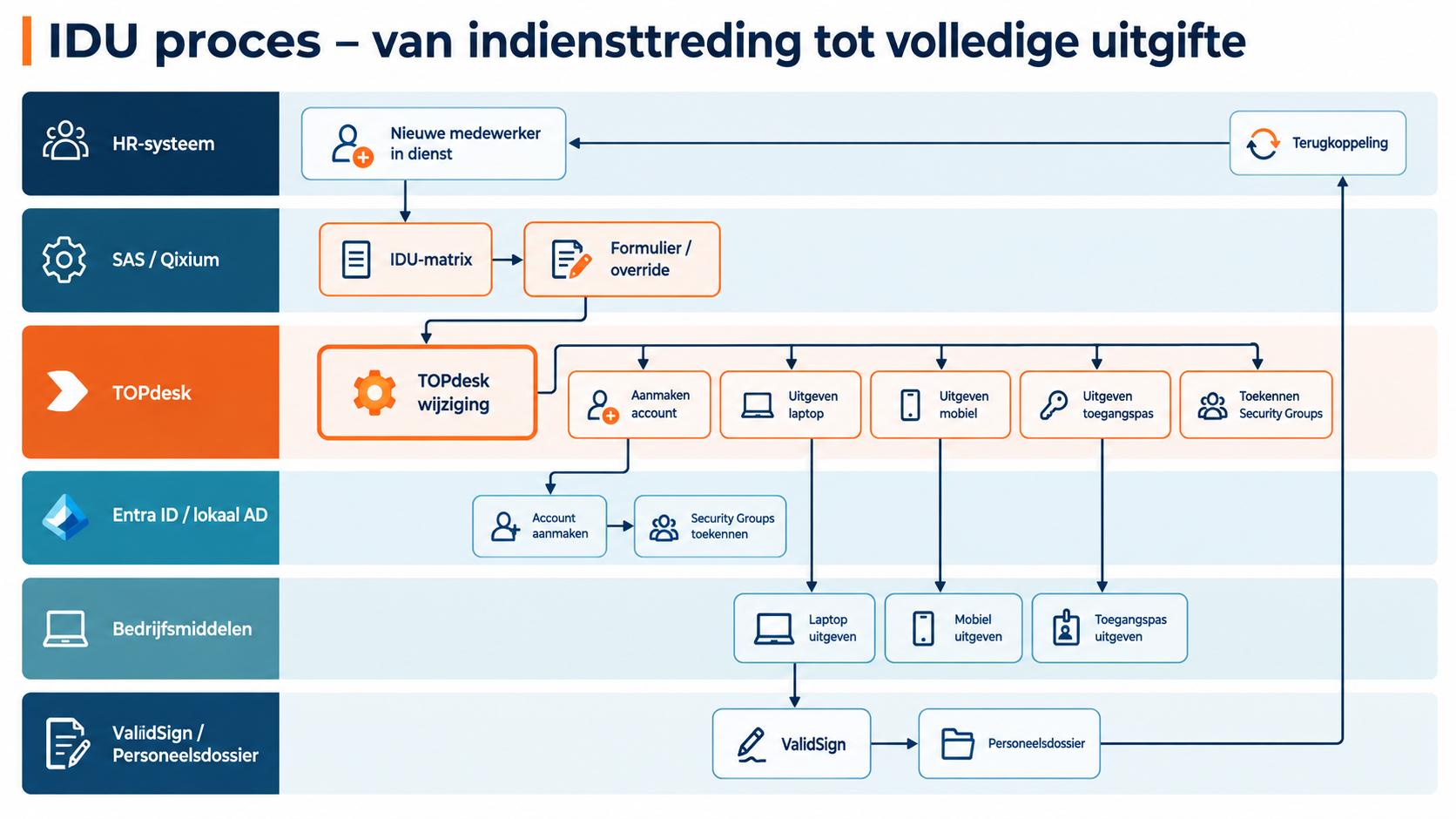
Service Automation Suite connects IAM to the wider employee workflow. Use a matrix in Service Automation Suite to relate roles to access, assets and tasks, for example. Combine those rules with current HR and TOPdesk data and agree who maintains the matrix. This determines the changes and actions needed.
Lifecycle matrix, form & exceptions
Combine the data with your policy, risk assessments and checks. Request information or a decision where needed, track actions and record the outcome.
Employee, date & current situation
Microsoft Entra ID Microsoft Intune

Activities, accounts, handover & signing
Use the HR change and current person, access and asset data. Forms or reviews supply missing information and exceptions.
Service Automation Suite applies role profiles, conditions and effective dates. Start or update the TOPdesk change with appropriate activities for HR, IT and facilities.
Connect account and group actions to asset handover and confirmation. Include ValidSign signing and file storage where needed. Return outcomes to the activities.
Once the account is created, write agreed account data or status back to AFAS or the chosen HR source. The TOPdesk activity receives the same outcome. HR and IT no longer need to copy or chase confirmation separately.
IAM · role changes
Service Automation Suite connects IAM to the wider employee workflow. Use a matrix in Service Automation Suite to relate roles to access, assets and tasks, for example. Combine those rules with current HR and TOPdesk data and agree who maintains the matrix. This determines the changes and actions needed.
Lifecycle matrix, form & exceptions
Combine the data with your policy, risk assessments and checks. Request information or a decision where needed, track actions and record the outcome.
Employee, date & current situation
Microsoft Entra IDChange, activities, accounts & assets
Use the HR change and current person, access and asset data. Forms or reviews supply missing information and exceptions.
Service Automation Suite applies role profiles, conditions and effective dates. Start or update the TOPdesk change with appropriate activities for HR, IT and facilities.
Connect account and group actions to asset handover and confirmation. Include ValidSign signing and file storage where needed. Return outcomes to the activities.
Return confirmed changes or revocations to TOPdesk activities and, where agreed, the HR source. Employee records, execution and follow-up stay aligned.
IAM · offboarding
Service Automation Suite connects IAM to the wider employee workflow. Use a matrix in Service Automation Suite to relate roles to access, assets and tasks, for example. Combine those rules with current HR and TOPdesk data and agree who maintains the matrix. This determines the changes and actions needed.
Lifecycle matrix, form & exceptions
Combine the data with your policy, risk assessments and checks. Request information or a decision where needed, track actions and record the outcome.
Employee, date & current situation
Microsoft Entra IDChange, activities, accounts & assets
Use the HR change and current person, access and asset data. Forms or reviews supply missing information and exceptions.
Service Automation Suite applies role profiles, conditions and effective dates. Start or update the TOPdesk change with appropriate activities for HR, IT and facilities.
Connect revocation of access and groups to asset returns. Update relationships and records, keeping open activities visible until their outcome is known.
Return confirmed changes or revocations to TOPdesk activities and, where agreed, the HR source. Employee records, execution and follow-up stay aligned.
IAM & auditability
A closed ticket does not explain why access was granted or what actually happened. Connect the IAM decision to approval, TOPdesk activities and outcomes from the systems involved. Support auditability and accountability, including within BIO2.
Applied rules, actions & exceptions
Combine the data with your policy, risk assessments and checks. Request information or a decision where needed, track actions and record the outcome.
Person, request, reason & approval
Microsoft Entra IDActivities, outcome & follow-up
Connect the person, reason and required approval to the requested access or assets.
Return system actions and manual confirmations to the TOPdesk change and activities. A sent command does not prove successful execution.
Show what was executed, what differs and who must act. This supports controls and reviews; compliance also requires appropriate policies and operations.
Sign for equipment
An employee joins or changes roles. Connect the HR change to a laptop or phone handover and request digital confirmation of receipt, for example through ValidSign. Service Automation Suite brings the employee, asset, document and follow-up together. Configuration follows your rules and the available interfaces.
Connect assignment, handover and signing
Combine the data with your policy, risk assessments and checks. Request information or a decision where needed, track actions and record the outcome.
Onboarding or role change and agreed equipment
For example, digital signing and evidence linked to the asset
Use employee and role data from the chosen HR source. Check the assigned equipment, required approval and handover owner. Link employee and asset to the same request or activity.
Prepare a receipt or equipment loan declaration with the correct employee and asset data according to your rules. Start a signing request in ValidSign, for example, and track the available signing status. Sending a request does not mean receipt has been confirmed.
After confirmed signing, store the document or its reference with the correct asset and record, for example in TOPdesk. Assign an owner to declined or expired requests and missing data. Configure feedback to HR only where available and agreed.
For administrators who want to understand how it works: connect AFAS to your other applications, map the data and use the response in the next step. Configure it centrally in Service Automation Suite.
Choose the API method, URL and authentication. Manage the host and credentials in an environment. Test a request in Discovery and inspect the fields actually returned by the API.
Select fields, translate codes and relate records using shared data. Compare source and target to identify new, changed or incomplete records.
Build the request body from validated data and inspect Body Preview before testing. Use the result ID in Data Context for the next request or save output to an entity. Configure write-back separately.
Configure error rules by HTTP code and/or message. A temporary API failure can use bounded retries. A missing relationship or rejection needs another route: record the cause and configure a verification task for the appropriate team, for example.
An example configuration, not fixed field names or a mandatory combination.
Sent ≠ processed. Use the response and agreed validation to determine the next step.
Use Endpoint Composer to publish a configured Service Automation Suite data object. Choose read and write methods and security profiles so a customer can retrieve agreed service data or a supplier can submit information, for example. Configure data selection and subsequent processing separately.
Endpoint ComposerCombine the integration with a form, a shared matrix, a review or collaboration between service teams. For example, an approved request leads to execution in Microsoft Entra, a ValidSign signature request and feedback in TOPdesk. Your process determines the steps needed; not every use case requires all these components.
Explore the connected building blocksStart with one use case. Connect customer, employee and asset data, for example, and agree which source is authoritative. Reuse those relationships, a matrix where needed and configured actions in the next workflow. Agree who maintains the data and rules. Expand without repeatedly connecting and maintaining the same information.
A request awaits a ValidSign signature. Declining, expiry and technical failure each need different handling.
Additional access is approved for a limited period. A checkbox alone does not preserve why, for whom and until when.
A person or organisation has a different name in the source than at a customer or supplier. Matching text again can create incorrect or duplicate relationships.
Configure the missing API request, input and output in API Composer. Use its response in the next step and combine it with data tables, forms and automations. Extend the same product and reuse the configured building blocks.
Use Service Automation Suite to update a ticket in TOPdesk, for example, with fields available through its API, such as category, priority, status and support group. For another application, configure its request and field mapping. The outcome determines the next action: confirm, add information or request review, not merely check whether the request arrived.
Build it yourself: explore the technical approachNeed to publish data or let others submit it? Endpoint Composer exposes a configured Service Automation Suite data object with selected methods and security profiles. Other building blocks handle subsequent processing.
From product to workflow


Over coffee, tea or online: tell us what you are working on.
We can help with the integrations, automation and coordination your process needs, even if your application is not listed yet.
